Tradesly · Guide
Your Office at a glance
Every conversation in one place: filters, live-call indicators, and what needs attention.
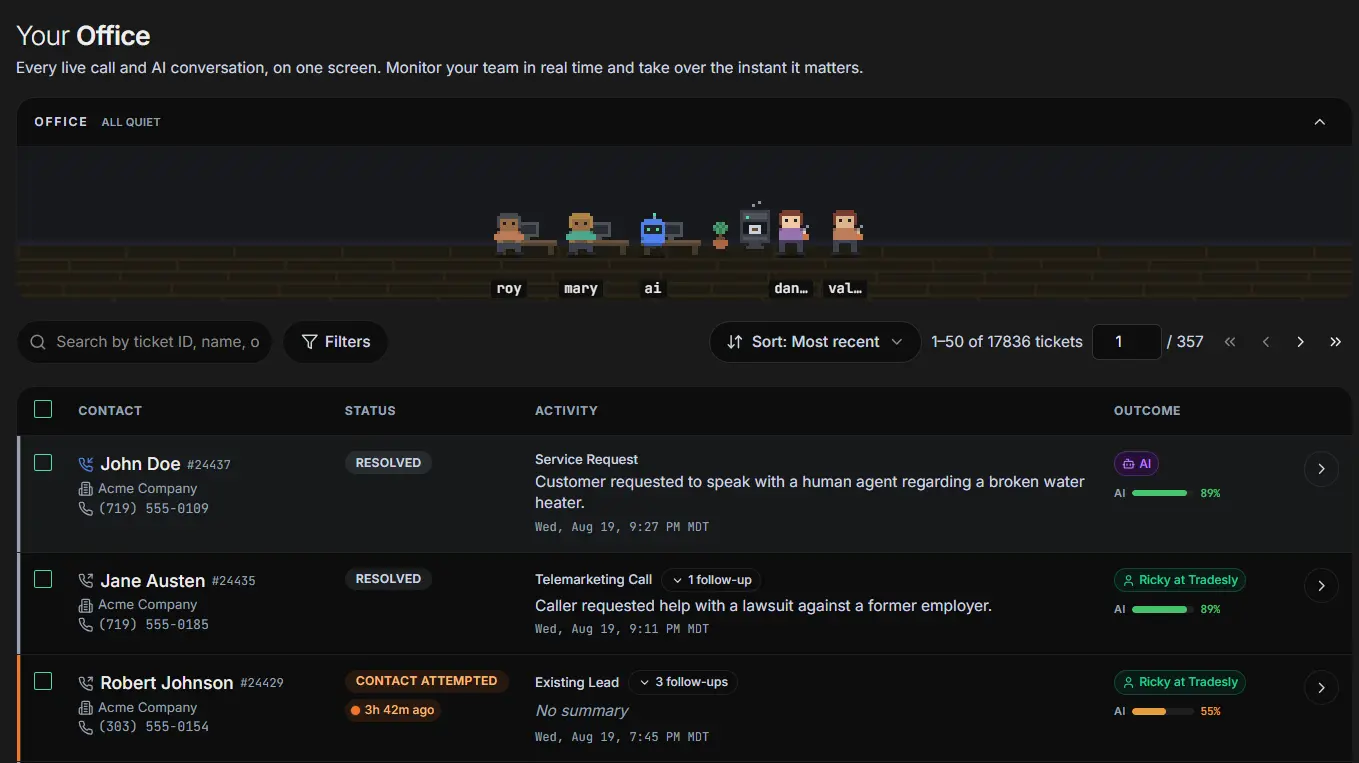
Somewhere right now, your AI is on a call. A text thread from this morning is waiting on an answer. A web lead came in while you were at lunch. On most systems those live in three different places, and “did anything slip today?” gets answered from memory.
The Office is where Tradesly puts all of it: every conversation your business is having — every call the AI has taken, every text thread, every ticket — in one list. You don't go looking for what's happening; you open the Office and it's in front of you.
1 Spotting the calls happening right now
A call in progress announces itself. Its row carries a Live pill naming who has the call, and hovering over it shows a preview of the conversation so far — enough to know whether it's a routine booking or the Henderson kitchen remodel — without opening anything.
Open the row and you're inside the call itself: the conversation as text while it happens, and the option to listen in. Watching and listening to a live call covers what you can do from there.
2 Cutting the list down to what needs you
The full list is the whole story; filters get you to your part of it. Filter by status, by date, or by the type of conversation — so “this morning's new calls”, “everything still marked follow up”, or “just the text threads” is one filter away, not a scroll through everything.
That's the working rhythm most people settle into: the live indicators tell you what needs you now; a status filter tells you what needs you today.
3 The steps
Open your Office.
The heading reads Your Office, with chips at the top counting what needs you and what's live right now.
Find one conversation fast.
The search box takes a ticket ID, a name or a phone number — “Search by ticket ID, name, or phone…”.
Cut the list down.
Filters gives you Agent, Companies, Status, Urgency, Ticket Type and a created-date range; press Apply Filters and the list shortens.
Put the question at the top.
The sort control names what you're sorted by — choose Most recent, Longest waiting or Needs review.
Open what needs you.
A row with a Live pill is a call happening right now; hover it for Listen or Take Over, or click any row to open its ticket.
Clear several at once.
Select rows and Bulk Actions offers Assign to Agent, Mark as Resolved and Escalate.
4 Every row opens into the full story
Each row is a ticket — one customer's ask, with their details, the conversation, any bookings, and a timeline of what happened. Inside a ticket walks through all of it.
Two more things live alongside the list. The Pixel Office — an animated strip of your team and your AI at work — has its own guide. And the status picker in the header works in the opposite direction from everything above: the Office tells you what's happening; your status tells Tradesly whether you can take calls. See Available, Busy, Break — your status.